LCA Multi-Factor Authentication (MFA) Configuration

When you next log in to your LCA account on the LCA Portal you will see the following message: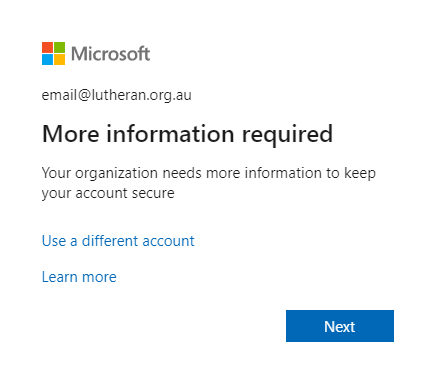
After selecting Next you will come to the following page:
To continue with your log in you will need to complete the configuration of the Multi-Factor Authentication or MFA for short.
The dropdown list three options for setting up MFA, two of which are available on the LCA system.
- Authentication Phone (A phone or mobile phone number)
- Office Phone (This option is now available)
- Mobile App (An application that can be installed on Android and iOS smart phones)

Mobile app
- Receive notifications for verification. This option pushes a notification to the authenticator app on your smartphone or tablet. View the notification and, if it is legitimate, select Authenticate in the app. Your work or school may require that you enter a PIN before you authenticate.
- Use verification code. In this mode, the app generates a verification code that updates every 30 seconds. Enter the most current verification code in the sign-in screen.
The Microsoft Authenticator app is available for Android and iOS. - Requires Android version 6.0 and up.
- Requires iOS 11.0 and watchOS 4.0 or later.
Authentication phone
- Phone call places an automated voice call to the phone number you provide. Answer the call and press the hash key (#) on the phone keypad to authenticate.
- Text message sends a text message containing a verification code. Following the prompt in the text, either reply to the text message or enter the verification code provided into the sign-in interface.
Set up your mobile device to use a text message as your verification method
- On the Additional security verification page, select Authentication phone from the Step 1: How should we contact you area, select your country or region from the drop-down list, and then type your mobile device phone number.
- Select Send me a code by text message from the Method area, and then select Next.

3. Type the verification code from the text message sent from Microsoft into the Step 2: We’ve sent a text message to your phone area, and then select Verify. 
4. From the Step 3: Keep using your existing applications area, copy the provided app password and paste it somewhere safe.
Note: This app password is for older applications unable to do 2FA correctly, eg. Outlook versions older than 2013, Office for MAC versions older than 2016.
- Select Done.
Set up your mobile device to receive a phone call
- On the Additional security verification page, select Authentication phone from the Step 1: How should we contact you area, select your country or region from the drop-down list, and then type your mobile device phone number.
- Select Call me from the Method area, and then select Next.

3. You’ll receive a phone call from Microsoft, asking you press the pound (#) sign on your mobile device to verify your identity.
4. From the Step 3: Keep using your existing applications area, copy the provided app password and paste it somewhere safe.
Note: This app password is for older applications unable to do 2FA correctly, eg. Outlook versions older than 2013, Office for MAC versions older than 2016.
- Select Done.
Set up the Microsoft Authenticator app to send notifications
- On the Additional security verification page, select Mobile app from the Step 1: How should we contact you area.
- Select Receive notifications for verification from the How do you want to use the mobile app area, and then select Set up.

The Configure mobile app page appears.
3. Open the Microsoft Authenticator app, select Add account from the Customize and control icon in the upper-right, and then select Work or school account.
If this is the first time you’re setting up the Microsoft Authenticator app, you might receive a prompt asking whether to allow the app to access your camera (iOS) or to allow the app to take pictures and record video (Android). You must select Allow so the authenticator app can access your camera to take a picture of the QR code in the next step. If you don’t allow the camera, you can still set up the authenticator app, but you’ll need to add the code information manually.
4. Use your device’s camera to scan the QR code from the Configure mobile app screen on your computer, and then choose Next.
5. Return to your computer and the Additional security verification page, make sure you get the message that says your configuration was successful, and then select Next.
The authenticator app will send a notification to your mobile device as a test.
6. On your mobile device, select Approve.
7. On your computer, add your mobile device phone number to the Step 3: In case you lose access to the mobile app area, and then select Next.
We strongly suggest adding your mobile device phone number to act as a backup if you’re unable to access or use the mobile app for any reason.
8. From the Step 4: Keep using your existing applications area, copy the provided app password and paste it somewhere safe.
Note: This app password is for older applications unable to do 2FA correctly, eg. Outlook versions older than 2013, Office for MAC versions older than 2016.
9.Select Done.Set up the Microsoft Authenticator app to use verification codes
- On the Additional security verification page, select Mobile app from the Step 1: How should we contact you area.
- Select Use verification code from the How do you want to use the mobile app area, and then select Set up.

The Configure mobile app page appears.
3.Open the Microsoft Authenticator app, select Add account from the Customize and control icon in the upper-right, and then select Work or school account.
If this is the first time you’re setting up the Microsoft Authenticator app, you might receive a prompt asking whether to allow the app to access your camera (iOS) or to allow the app to take pictures and record video (Android). You must select Allow so the authenticator app can access your camera to take a picture of the QR code in the next step. If you don’t allow the camera, you can still set up the authenticator app, but you’ll need to add the code information manually.
4. Use your device’s camera to scan the QR code from the Configure mobile app screen on your computer, and then choose Next.
5. Return to your computer and the Additional security verification page, make sure you get the message that says your configuration was successful, and then select Next.

The authenticator app will ask for a verification code as a test.
6. From the Microsoft Authenticator app, scroll down to your work or school account, copy and paste the 6-digit code from the app into the Step 2: Enter the verification code from the mobile app box on your computer, and then select Verify.
7. On your computer, add your mobile device phone number to the Step 3: In case you lose access to the mobile app area, and then select Next.
We strongly suggest adding your mobile device phone number to act as a backup if you’re unable to access or use the mobile app for any reason.
8. From the Step 4: Keep using your existing applications area, copy the provided app password and paste it somewhere safe.
Note: This app password is for older applications unable to do MFA correctly, eg. Outlook versions older than 2013, Office for MAC versions older than 2016.
9. Select Done.
