Resetting LCA Password

Resetting your password
To reset your LCA password first attempt to sign into the portal. Go to the lca.org.au website. In the top black bar, click on "LCA Portal"

Once you have pressed "LCA Portal" enter your LCA email address and press "Forgot my password".

This will then bring up a password recovery page. You will be required to enter your LCA email address and solve a CAPTCHA
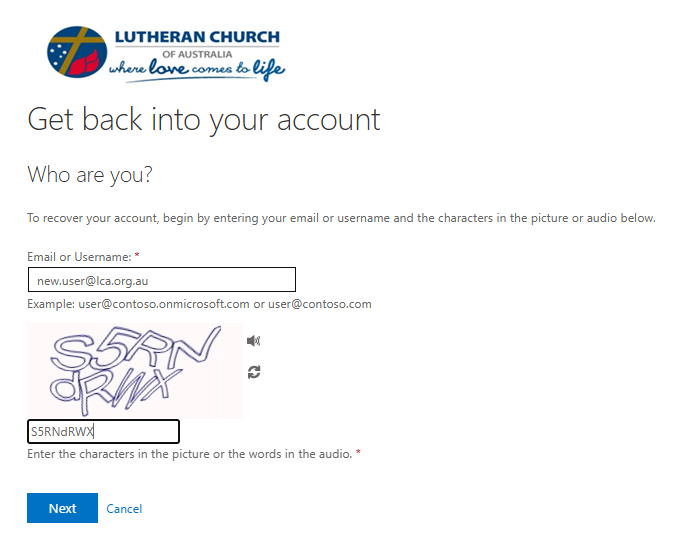
Press Next to continue on to the authenticator part of the reset.
To reset your LCA password, you will need to complete two separate authentication methods. This will include a text or call to your registered mobile device AND a notification or code from your Microsoft authenticator app.

When completing the call/text section, you will now need to authenticate your reset by using the Microsoft authenticator application. If you are having issues with the authenticator app or require the app to be moved to a new phone, please contact LCA IT at ITSupport@lca.org.au

After registering your authenticator, you will be prompted to create a new password. (Please note that passwords must be 16 characters or longer and contain a special character).

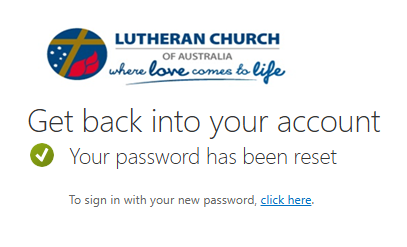
After resetting your password, you will be required to sign into your account again.
