Mitel Phone System Guide

With the change over to the new phone system as with all systems there is a learning curve. This guide has been designed to help navigate the new phone system.
MAKING A PHONE CALL
⒈To make a phone call using the Micollab Application first open the Micollab app and navigate to the top search bar titled "Search or Dial" in this search bar you can type in the number of the person you are attempting to call, and press enter. This will begin dialing the number.
⒉When calling within the LCA you can simply type the name of the person you wish to call in the "Search or Dial" bar. This will bring up their contact.
RECIVING AND TRANSFERING CALLS
⒈When receiving a call the number will appear in a "Call Box" on the right hand of the screen
⒉After Accepting a call the "Call Box" will change to A grey background and the number displayed at the top. From here you are given 4 different options, the first option depicted by the video camera is to initiate a video call. The second option depicted by the seven dots will bring up the dial pad. The third option depicted by the pause sign will put the call on hold. Finally the final option depicted by the three dots will allow for a conference call or a transfer.
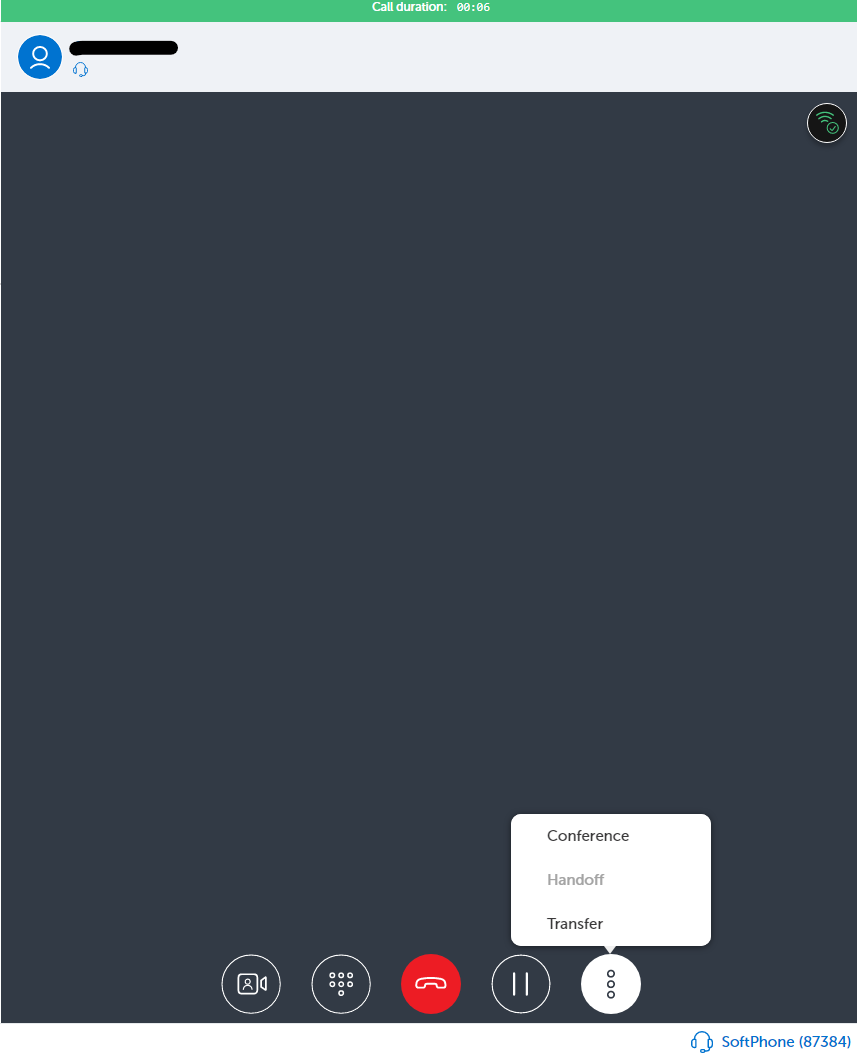
⒊When pressing the transfer button, you will be prompted to enter a contact or a phone number. If transferring internally simply type the name of the person you wish to transfer too. You will then need to press "Consult" if you wish to start a call with the person you wish to transfer too. Or "Blind" if you wish to simply transfer the call without consulting.

